
Connect VietQR for automatic unlock
Connect VietQR to ABMDM: pick the shop receiving account, connect balance alerts, send a small test transfer, confirm the device unlocks itself.
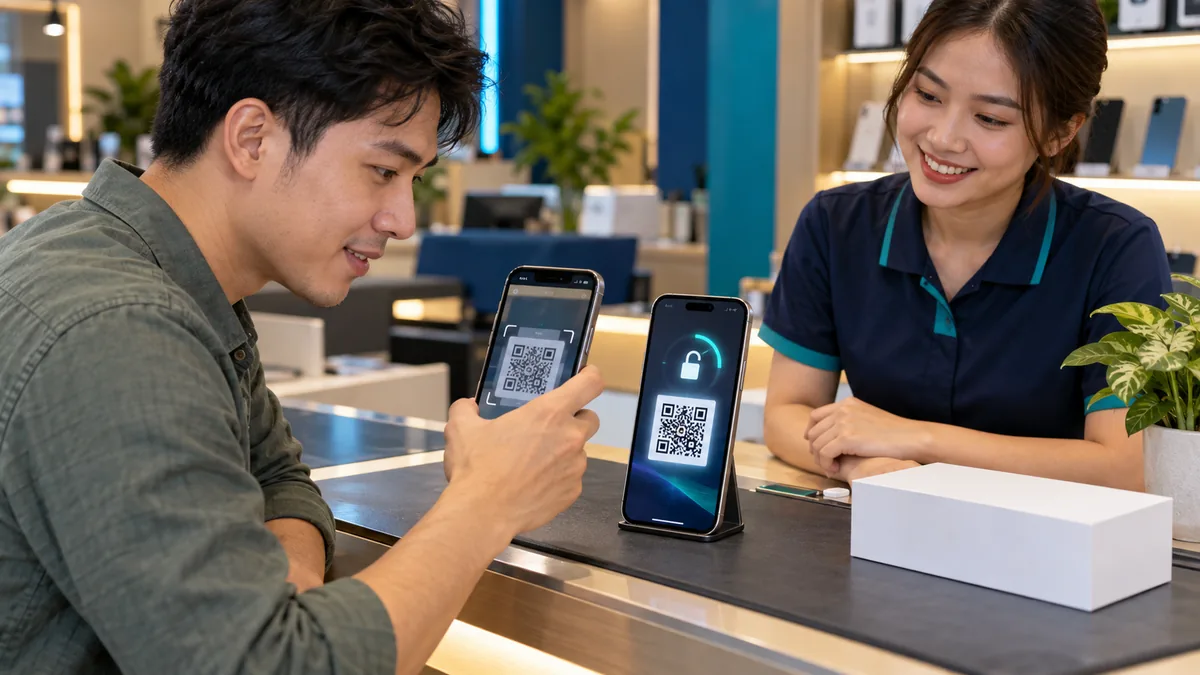
VietQR lets the customer pay and the device unlocks
When a device is locked for an overdue instalment, the screen shows the amount due, the shop phone number and a VietQR code. A correct transfer unlocks the device — as on device financing.
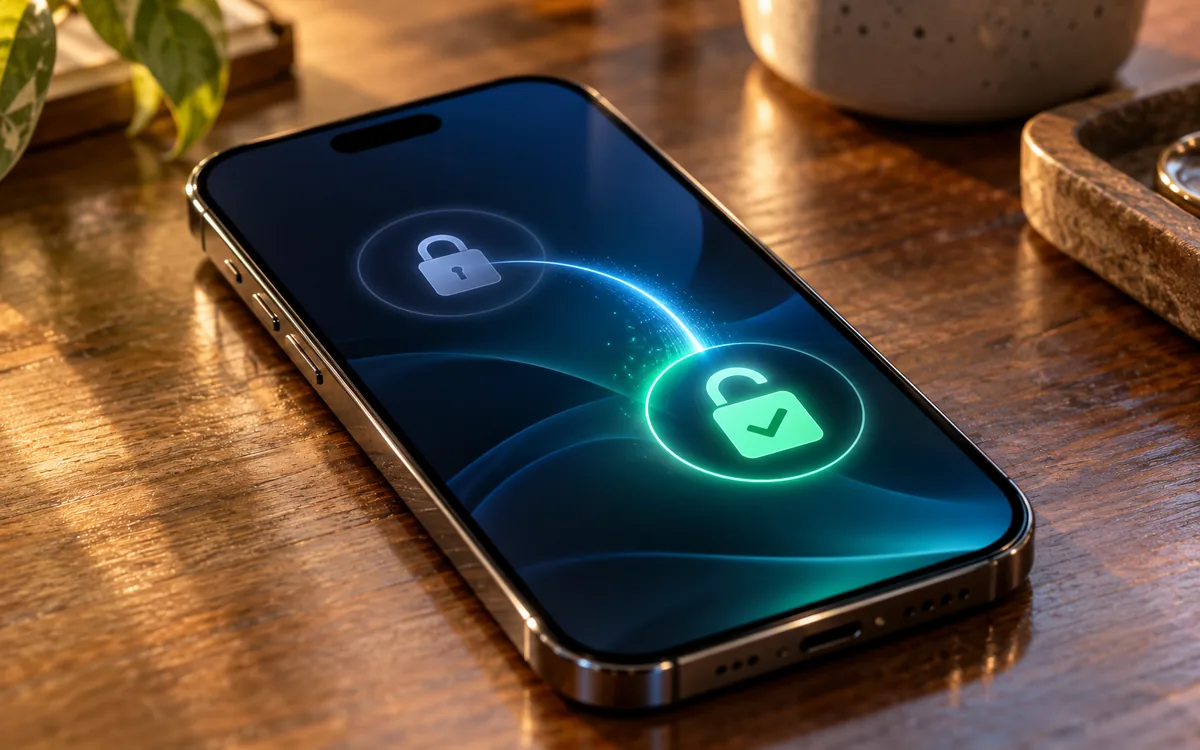
Until balance alerts are connected, the person in charge still unlocks by hand after checking the statement. Connecting means evening and weekend shifts do not wait on each device.
Do this only on shop devices sold on instalments or leased, with a contract. Do not put VietQR on an employee’s home phone.
The screens may change; call 0913 081 986 for a live walkthrough.
Connect the receiving account
Do this in order, without a specific button name:
- Choose the bank account that receives the shop’s payments.
- Connect a balance-notification service to ABMDM.
- Check the VietQR code on the lock screen of a test device.
- Send a small test transfer from another account.
- Confirm the device unlocks and the log shows the right amount.
- Only then apply it to live contracts.
The amount on the code must match the remaining balance on the contract. A wrong amount means the device stays locked — that is expected, not a reason to unlock off the books.
Set lock tiers before you rely on VietQR: how to set up lock tiers. Legal background: instalment lock tiers.
When a transfer does not match
Wrong content, amount or account: check the statement, unlock by hand if the full amount arrived, and log it. Do not ask the customer to pay twice if the money is already in.
After payoff, the device leaves management; check the hardware. A customer self-service portal to view the contract and pay is still Coming soon — not in the service yet; do not promise that link before it ships.
Evening shifts and several branches
If the evening shift relies on automatic unlock, finish the connection and the small test transfer first. Do not leave that shift “unlocking by hand” with no log.
Several branches: the receiving account must match where the customer signed, or the allocation rule must be explicit. A VietQR code for the wrong branch sends money to the wrong shop.
Reminders still run 7am–9pm. The code on the lock screen is so the customer can pay while restricted, not an excuse to call at 10pm.
The screens may change; call 0913 081 986 for a live walkthrough.
Check before the evening shift runs on its own
A small test transfer already unlocked the device. The log shows the right amount. The code on screen matches the shop account. The evening shift knows when a hand unlock is allowed (wrong amount, wrong content) and that it must be logged.
The screens may change; call 0913 081 986 for a live walkthrough.
Need this now? Call 0913 081 986 (8am–9pm).
All guides · How to register for Apple Business · Connect Apple Business to ABMDM · Add a retail iPhone with Configurator
Frequently asked questions
How does the customer pay if VietQR is not connected yet?
Someone with the right role unlocks by hand after matching the payment to the shop account. Log who unlocked and the amount.
Does the device unlock as soon as the transfer is sent?
Once balance alerts are connected, the device unlocks after the matching transaction is received. Send a small test transfer before you roll it out.
Can we use the owner’s personal bank account?
Use the shop receiving account that matches the contract. If you change accounts, update ABMDM and test a transfer again.
Can we send a reminder after 9pm and still show VietQR?
Reminders only from 7am to 9pm, and only to the person named on the contract. The VietQR code on the lock screen is for payment, not for after-hours calls.
Are the bank-connection screens in ABMDM fixed?
The screens may change; call 0913 081 986 for a live walkthrough.
Want advice tailored to how you operate?
Call 0913 081 986 (8am–9pm, every day) or leave your details and we will call you back.