
Add a retail iPhone with Configurator
Add a retail iPhone to Apple Business with Apple Configurator on iPhone: reset, scan, assign ABMDM, then power on so it receives configuration.
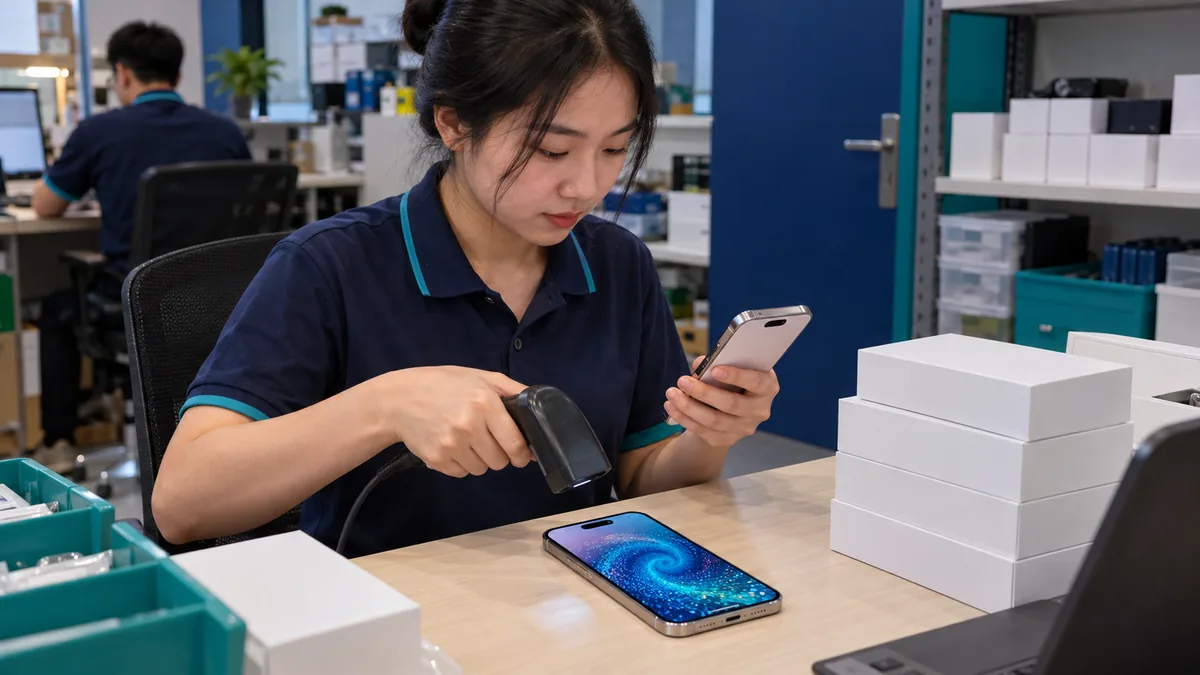
Retail devices versus business-channel devices
Devices from a business reseller: the serial is already in Apple Business, and power-on enrols MDM. Retail devices are counter stock, used units, or phones moved from another shop — the serial is not in your organisation yet.
Use Apple Configurator only when the serial is not on the portal. Background: Apple Configurator on iPhone. Portal: what Apple Business is.
Do not scan before the ABMDM server is connected. Follow connect Apple Business to ABMDM first.
Prepare
One iPhone with Apple Configurator, signed in to the company’s Apple Business account — not a salesperson’s personal Apple Account.
The device you add must belong to the business (staff issue, instalments, lease). Do not add a customer’s phone “for safekeeping” or a device without paperwork.
Put the device on the initial setup screen. If it has data, back up what the company needs, then reset it.
Scan with Configurator on iPhone
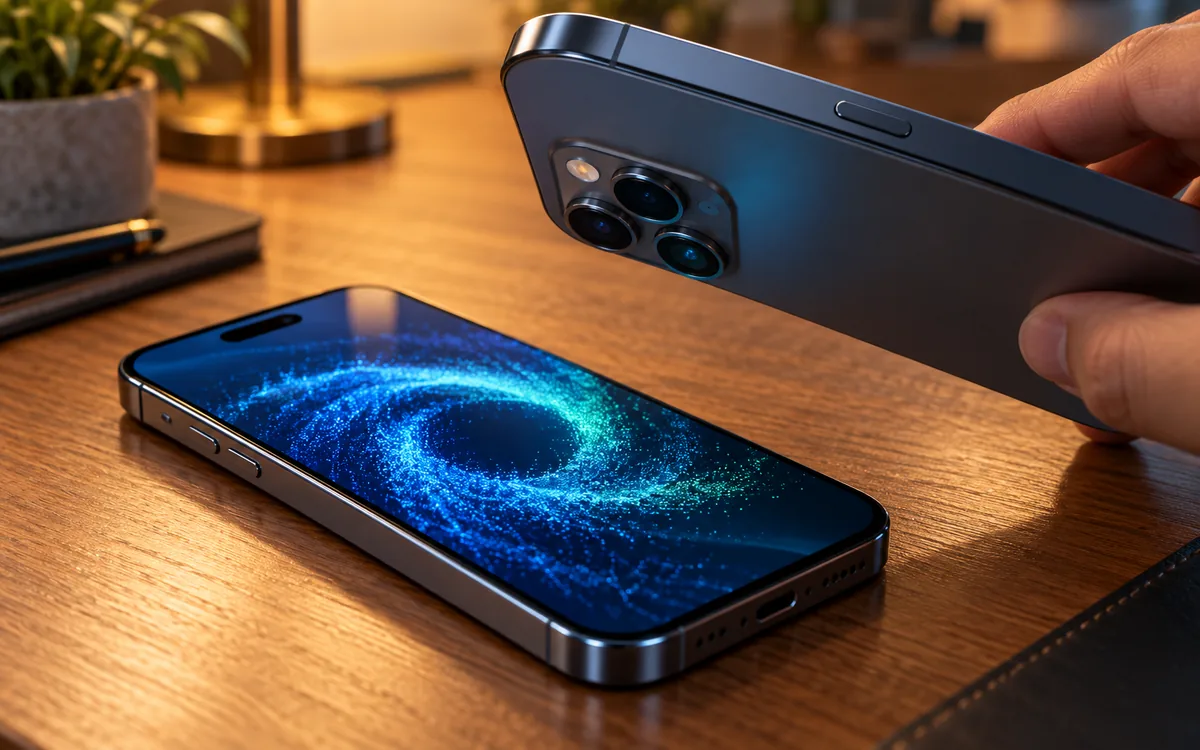
- Install Apple Configurator on an iPhone and sign in with Apple Business.
- Reset the device you want to add to the initial setup screen.
- Scan the pattern on that device with the Configurator iPhone.
- Assign the device to ABMDM in Apple Business.
- Power the device on so it receives configuration.
- Check the serial in the dashboard; send lock, then unlock.
After step 5 the device is Supervised, like a business-channel unit. See Supervised iPhone.
Common mistakes
Scanning while the device still reaches the home screen: reset to setup, then scan again.
Signing into Configurator with a personal account: sign out and use Apple Business.
Scanning without assigning ABMDM: the serial sits on Apple’s portal and ABMDM stays empty.
Activation Lock for someone else: stop. Do not ask anyone to bypass it. This article does not explain how to strip that lock.
Record the serial, the date and who added it. For instalment handovers, enrol before the customer leaves with the phone.
Instalment phones and staff phones
Phones handed to instalment customers: enrol, Supervise, attach the contract, test lock then unlock, then hand over. Handing over a clean phone and scanning later drops management at the moment you need it.
Staff phones: the same Configurator path if you bought retail. Write the handover after the serial is in ABMDM.
Several branches: one person adds devices, or roles are explicit. Many people scanning at once assign the wrong organisation.
This page describes Apple’s flow on iPhone. It does not describe taking a phone that still belongs to someone else.
Check after the scan
The serial is on Apple Business. The serial is on ABMDM. The device is Supervised. Lock then unlock works. The record names who scanned and when. If the device asks for someone else’s Apple Account, stop; do not bypass the lock.
Need this now? Call 0913 081 986 (8am–9pm).
All guides · How to register for Apple Business · Connect Apple Business to ABMDM · How to set up lock tiers
Frequently asked questions
Do devices bought at an official Apple shop need Configurator?
Not if the reseller already assigned the serial to your Apple Business. Retail devices that did not go through a business channel need Apple Configurator on iPhone.
Do we need a Mac?
ABMDM’s flow uses Apple Configurator on iPhone. Sign in with the Apple Business account and scan a device on the setup screen.
What if we forget to reset the device before scanning?
The device must be on the initial setup screen. If it is in use, back up company data you need to keep, then reset it before adding it to the organisation.
Does scanning enrol the device in ABMDM by itself?
Assign the device to the ABMDM server in Apple Business, then power it on so it receives configuration. A scan without assignment does not put it in the dashboard.
The device asks for the previous owner’s Apple Account. What now?
Stop. This guide does not cover bypassing Activation Lock. Return or exchange the device until that lock is gone.
Want advice tailored to how you operate?
Call 0913 081 986 (8am–9pm, every day) or leave your details and we will call you back.