
iPad kiosk for a shop counter: what works now
An iPad kiosk sits on the counter for sales or self-service; it is not a staff phone that goes home. ABMDM sets Supervised mode, blocks erase, and can hide or block apps. Locking an iPad to one app, arranging the home screen and web filtering are still Coming soon — not part of the service yet. Do not lock a personal iPad without written consent.
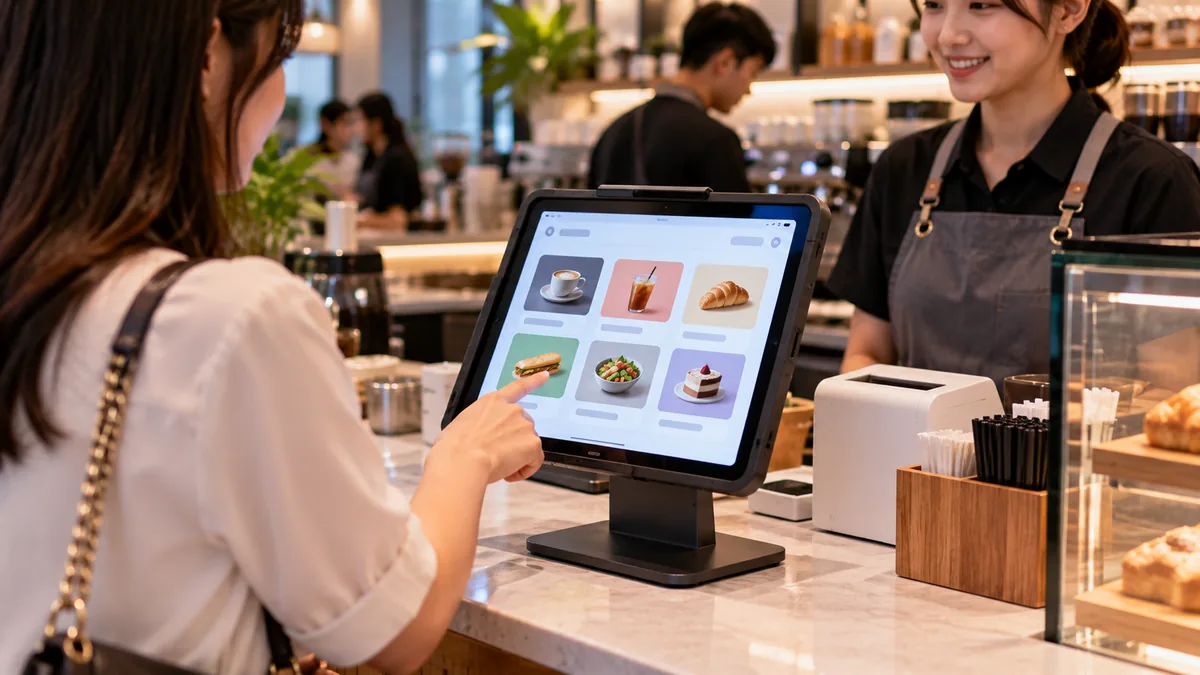
A kiosk iPad is a counter device, not a home iPad
An iPad kiosk sits on a sales or self-service counter. It runs the shop's job on site. The shop owns it.
ABMDM's homepage talks about locking iPads to a single app for retail. On features, that exact item is marked Coming soon. This article covers what is live. It does not promise a feature that has not shipped.
What you can use now on a supervised device: block erase, block removal of management, hide or block apps, block AirDrop, camera, screenshots and computer pairing, Wi-Fi, a required passcode. Background: Supervised mode.
Before you put the iPad on the counter
Enrol it in Apple Business and ABMDM. Retail units need Configurator on iPhone. Supervised mode is set on every device in the system.
Hide or block apps that are not for selling. Block erase so someone at the counter cannot take it home to “reset”. Rename by counter, wallpaper with a contact number.
Do not use an employee's personal iPad without written consent. Enrolment by link or QR for personal devices on ABMDM is still Coming soon.
| Counter need | Live now | Coming soon |
|---|---|---|
| Shop-owned, does not go home | Supervised, anti-removal, block erase | |
| Fewer unrelated apps | Hide or block individual apps | |
| Only the sales app | Single-app lock | |
| Home screen layout, web filter | Home screen layout, web filtering |
Several branches
Configure once, attach each device to the right branch. Branch staff should see only their branch's devices. Do not give erase rights to everyone on the counter.
If a counter iPad is lost: remote lock, Lost Mode if you need location (log it). Choosing software by job: company iPhone management.
Lost devices, end of shift, moving counters
End of shift: the iPad stays on the stand, passcode required, erase blocked. Moving counters: rename the device, attach the right branch, wallpaper with the new counter number.
If it is lost: lock with the shop number, Lost Mode if you need location (log it). Wipe when you are sure it will not come back, then enrol a replacement with the same configuration.
Buying and silently installing shop apps through Apple Business is still Coming soon. Until that ships, install the sales app on supervised devices with the process the shop already uses. Do not claim silent install if that item is not live.
What not to do
Do not tell internal stakeholders the iPad “only runs one app” before the Coming soon item ships. Do not teach anyone to bypass management. Do not let a counter iPad drift outside still organisation-managed and then sell it as a clean device.
Trial 14 days, up to five devices. Call 0913 081 986 (8am–9pm) when you set up the first counter iPad.
All articles · What is MDM? Mobile device management for business · What is Apple Business? The change from April 2026 · How to register Apple Business in Vietnam
Frequently asked questions
Can ABMDM lock an iPad to a single app yet?
Not yet. Locking an iPad to one app, arranging the home screen and web filtering are still Coming soon, not part of the service. Today you use Supervised mode, block erase, and hide or block apps.
How is a kiosk iPad different from a staff iPad that goes home?
A kiosk device stays on the counter and belongs to the shop. Staff do not take it home and wipe it.
Should we use a home iPad as a kiosk?
Only if the shop owns it or there is written consent. A home iPad does not become a counter device by itself.
If someone resets the counter iPad, does it leave management?
If it is still in Apple Business, Supervised, with anti-removal configured, a reset returns it to the system.
How do we configure many shops?
One platform, devices attached to the right branch. Bulk configuration through MDM, not hand setup on each iPad. Single-app lock, when the Coming soon item ships, will use the same flow.
Want advice tailored to how you operate?
Call 0913 081 986 (8am–9pm, every day) or leave your details and we will call you back.